For whoever runs it
 For whoever runs it
Running a tournament, start to finish
From the empty dashboard on the night to the results on the club board.
- 1
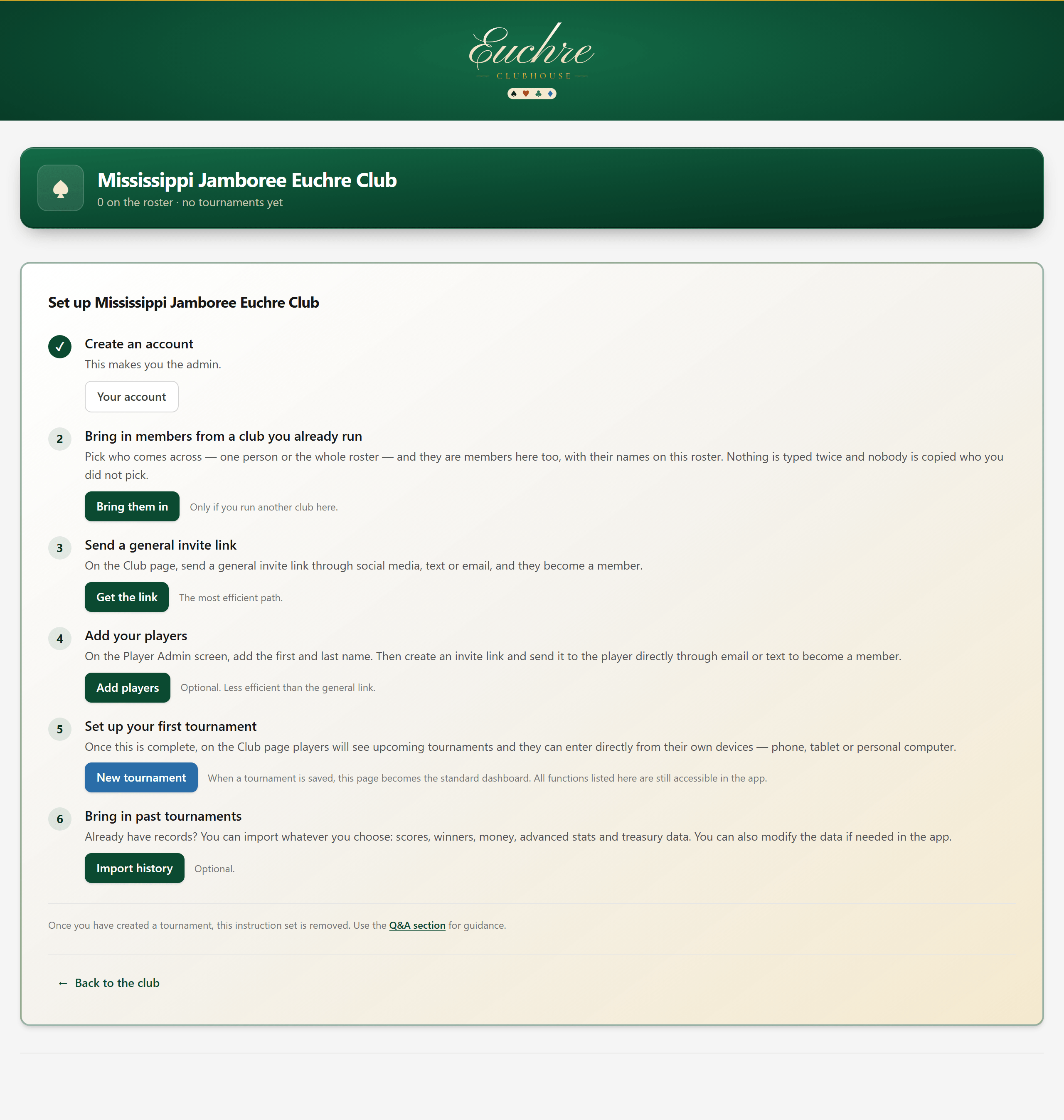
Start on the dashboard
Everything for your tournament management begins here.
- 2
Set the tournament up
All the details your tournament will feature: the place, the players, the date, the format and the money.

- 2A
Not tracking money?
Leave Track the money for this tournament unticked. There is no entry fee, payout or euchre jar to set, and you can skip the money steps further down, What it will pay and Settle the money, and go straight on to the next screen.

A club doesn't need a treasurer or a treasury to run a tournament. At check-in, Paid is greyed out. If you track the money, Put into the treasury is a line you can leave unticked, like the raffle, charity and house.
- 2B
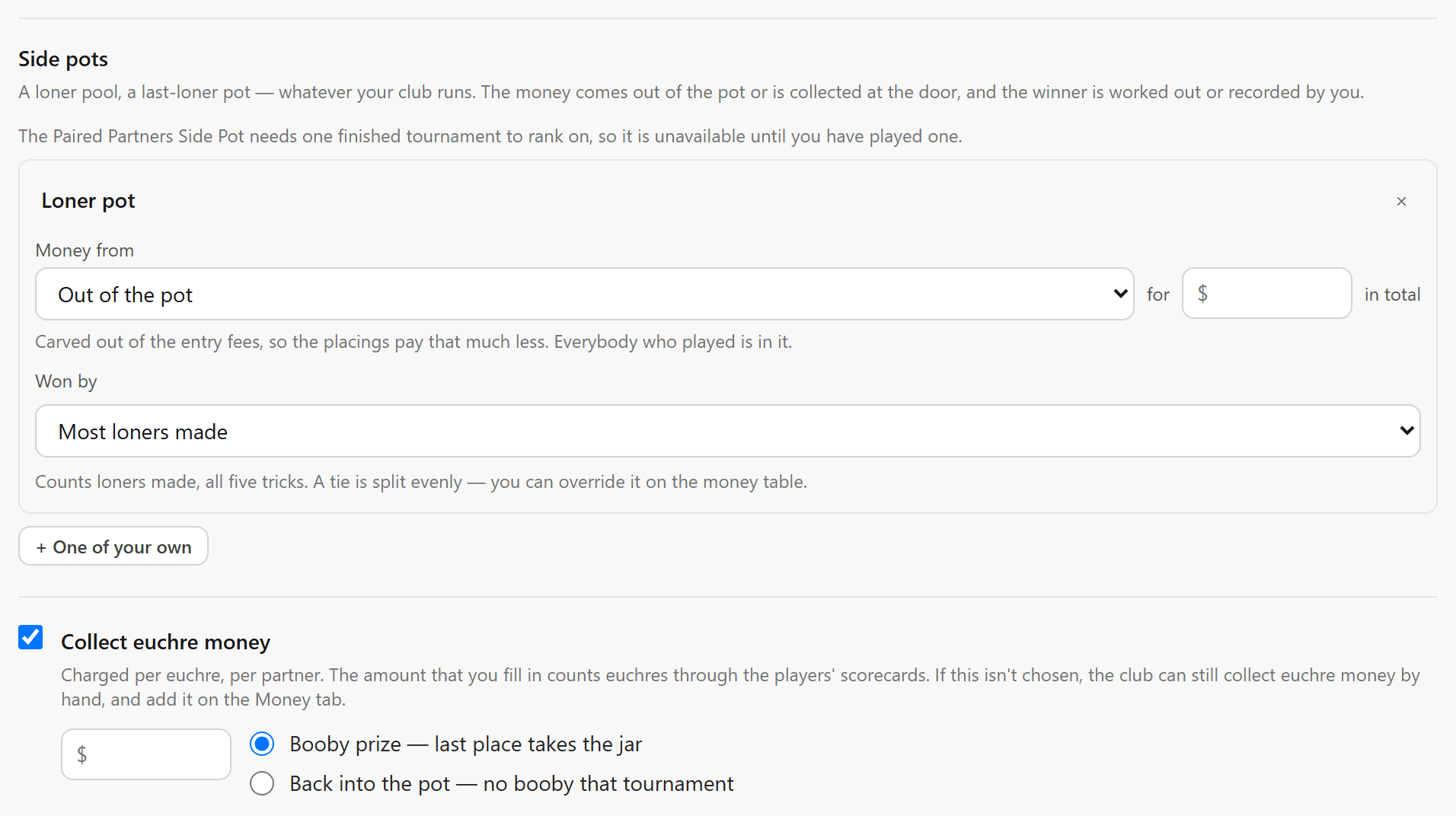
Side pots and the euchre jar
Under the money, your club's optional pots: a loner pool or one of your own. The money either comes out of the pot or is collected at the door, and you say who won it. Collect euchre money is charged per euchre, per partner and is added up at the tables when the tournament is complete. If euchre money is not tracked through the app, it can be added back in the Money section and distributed as the club chooses.
Entry fees are collected at the check-in station, in the Here and Paid columns (step 9).
- 3
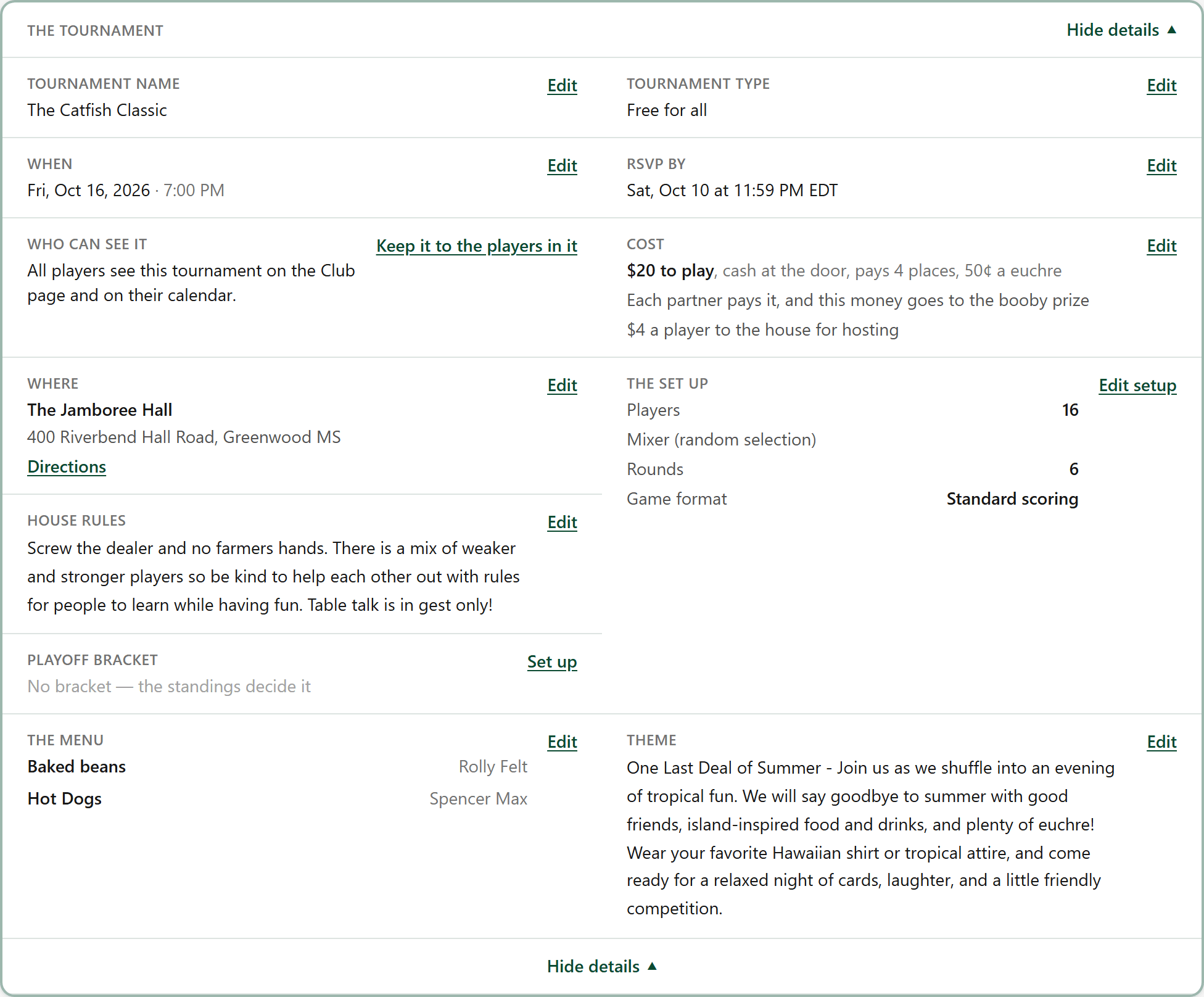
What people are turning up to
The tournament details captured. You can edit these as needed.
- 3A
Keep it to the players in it
Under Details, Who can see it decides whether the whole club sees this tournament. Keep it to the players in it, and only the players you added see it on the Club page and on their calendar.

Show it to the whole club, in the same place, opens it up again, even after it has been played.
- 3B
The tournament checklist
Checklist, in the row under the title, opens the jobs around a tournament, from the weeks before to the day after. Each job says where in the app it is done.
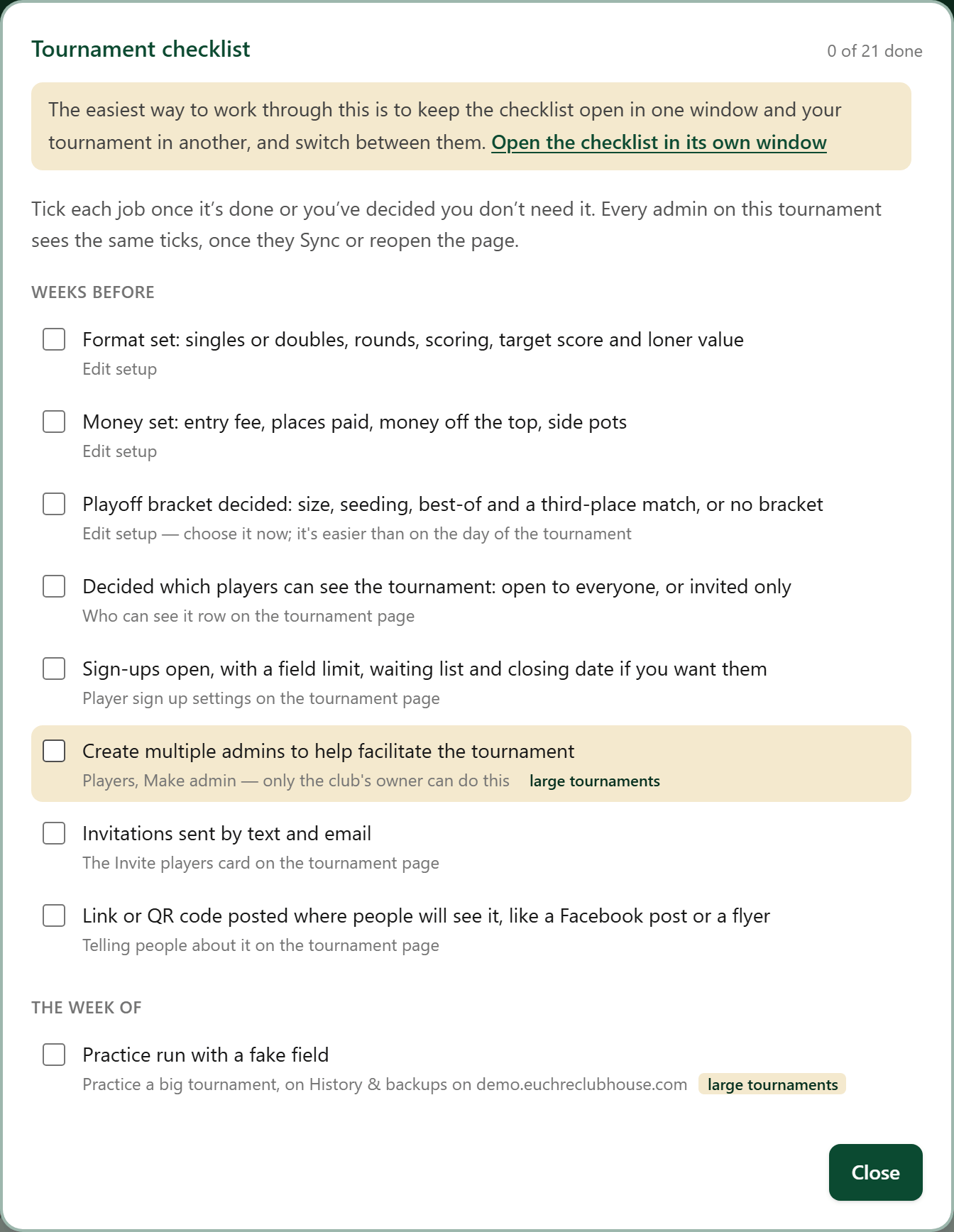
Tick a job once it is done, or once you've decided you don't need it. Every admin on the tournament sees the same ticks. Members never see it.
- 4
Open it up to sign-ups
Decide who has to be approved before the invite goes out.
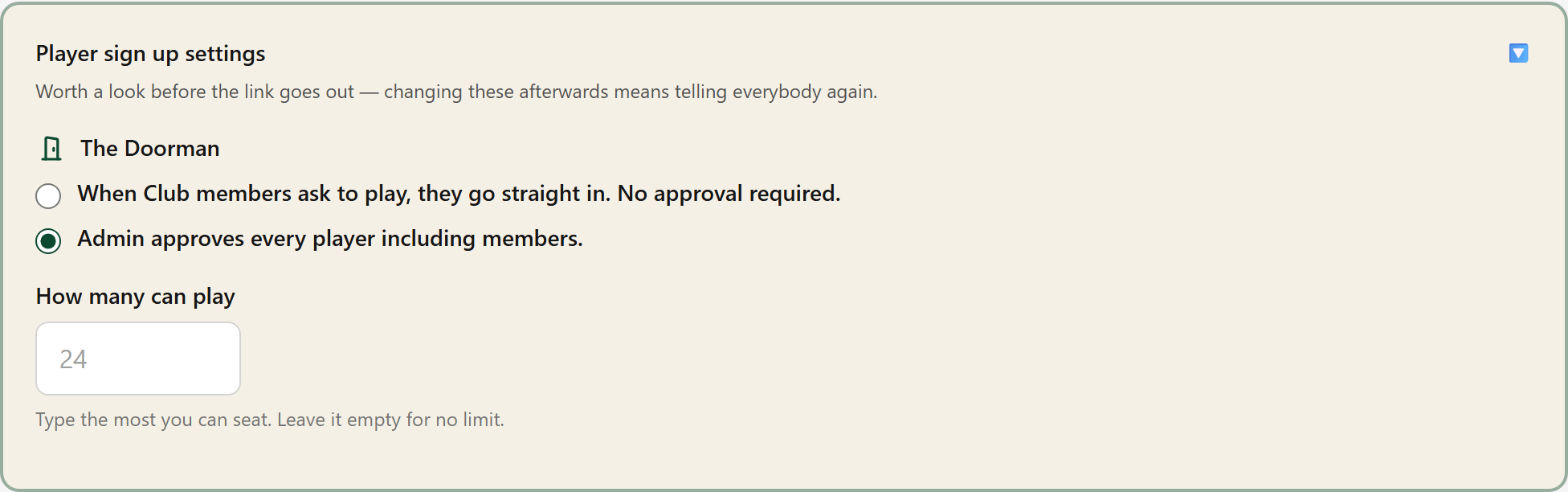
This is an important step to manage player sign ups. This is especially useful with large tournaments.
- 5
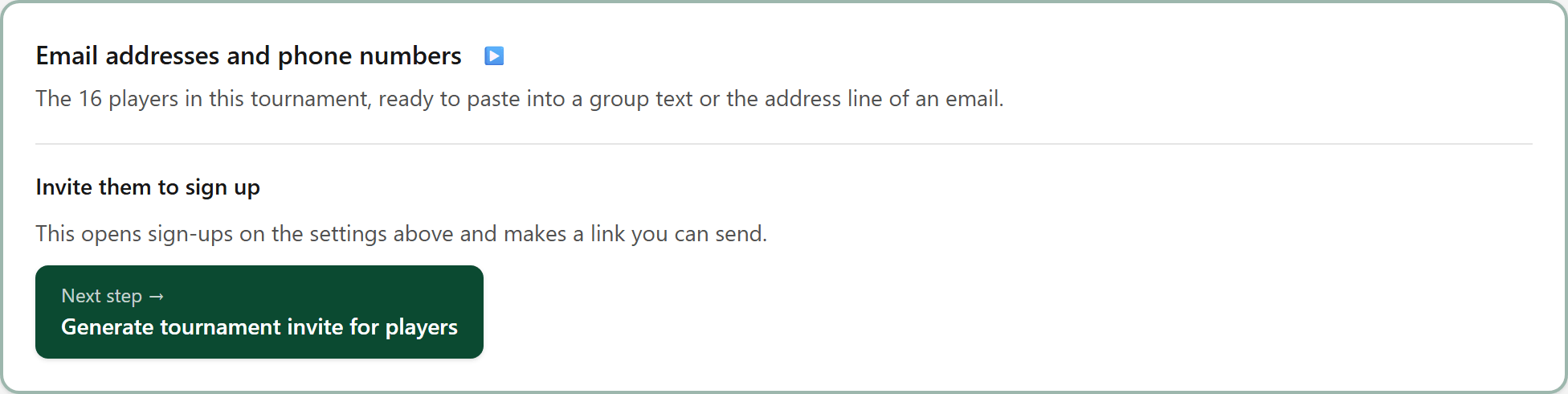
Generate the invite
Generate the invite, then send it out to your club and to new members.
- 6
Tell people it's happening
Copy the invite link and send it to the player group through email, text or social media. Check for sign-ups shows who is playing.
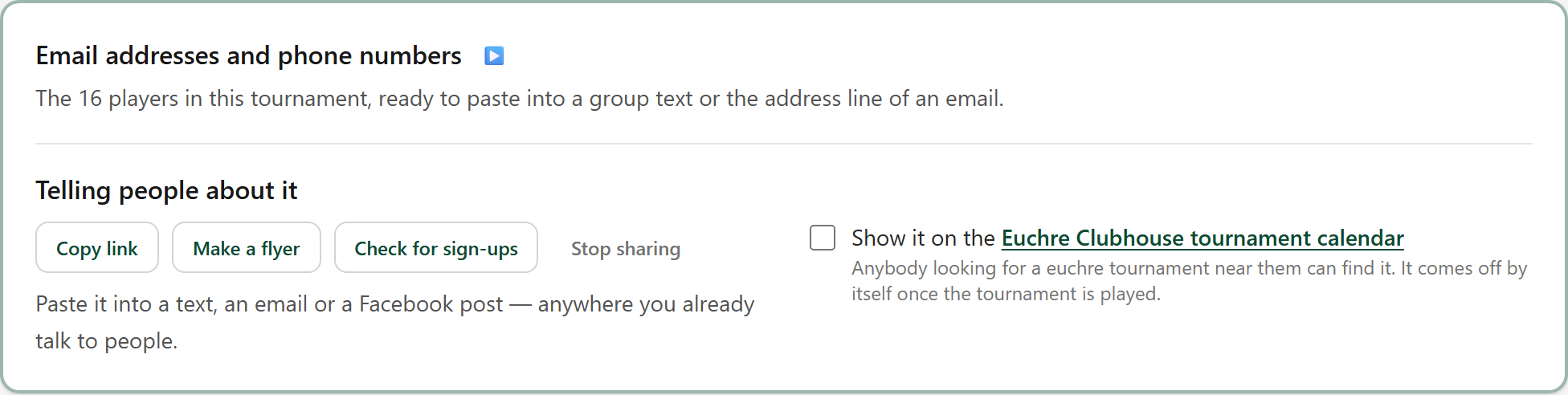
Nothing is sent from here — what goes out goes from your own phone or mail, in your own words. Stop sharing closes the invitation again.
- 6A
Invite a whole list
Invite players, on the tournament's page while it is being set up. Tick the next 20 picks twenty people nobody has sent to yet. The left box on each name is this batch; the right box is sent already.
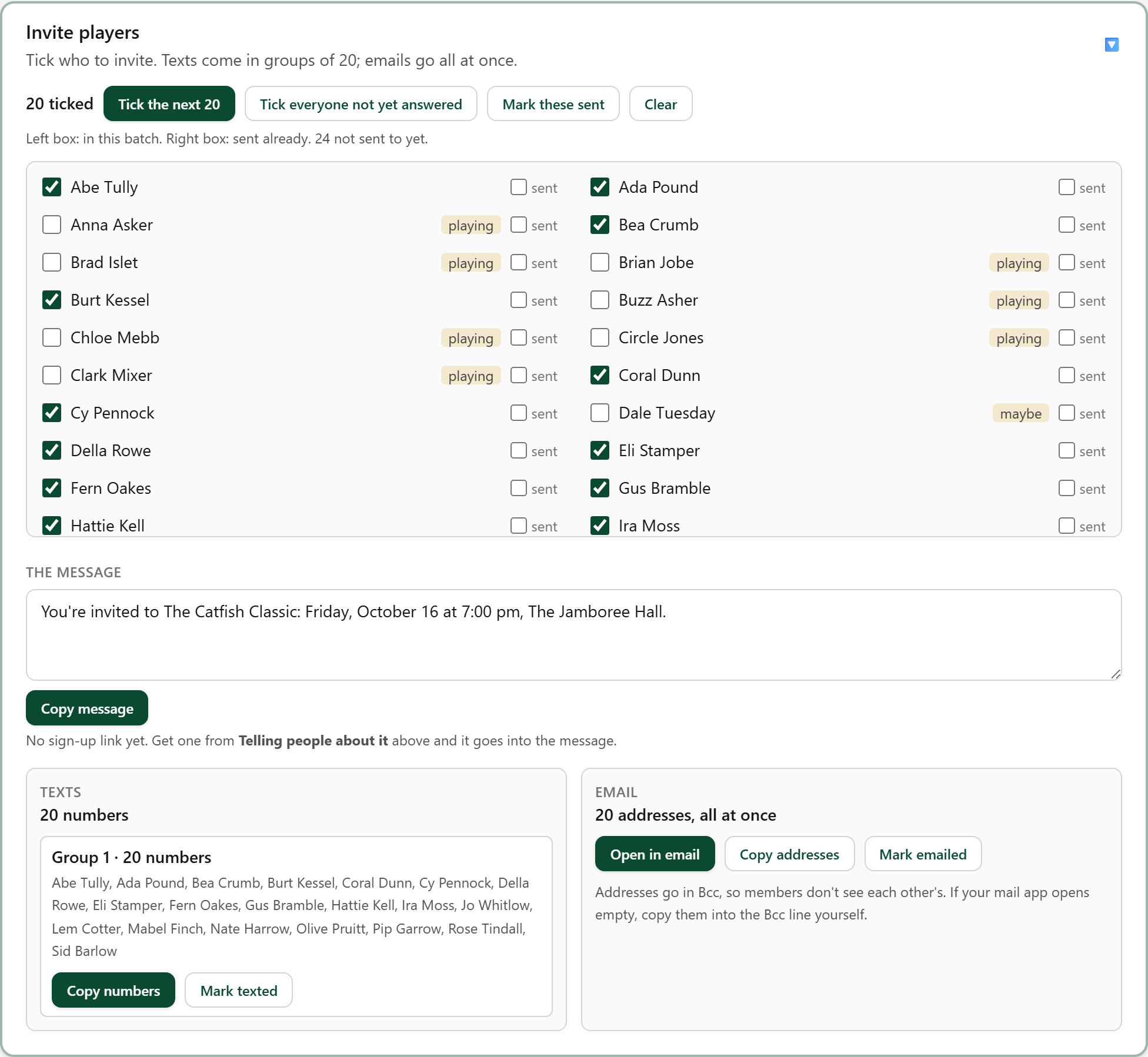
A tag beside each name says where they stand: playing, signed up, can't make it, no contact.
- 6B
Send the texts and the email
Under the list: the message with the sign-up link, the phone numbers in groups of 20 with Copy numbers, and every email address in one Bcc line with Open in email.
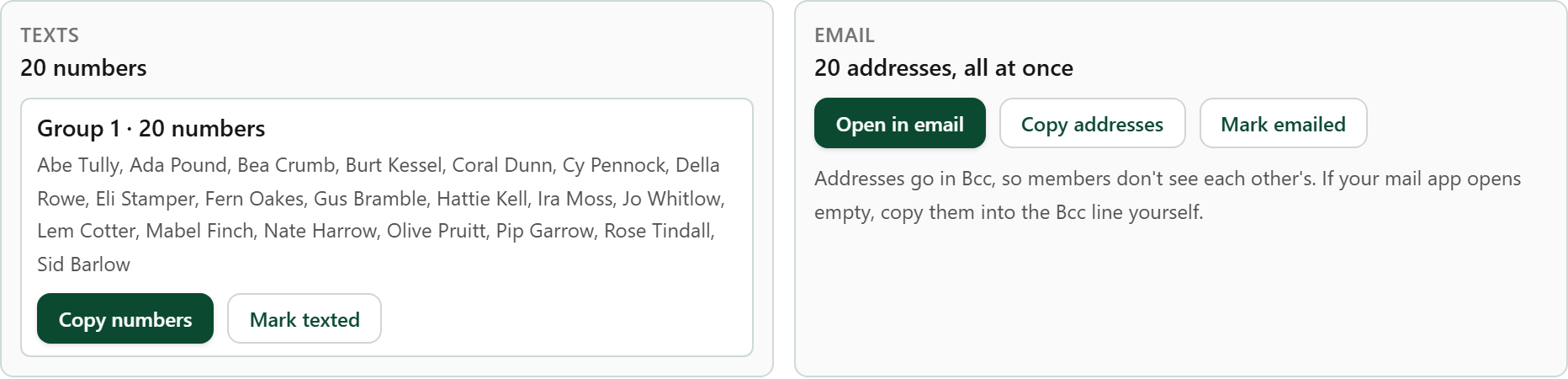
Nothing is sent by the app, and nobody is added to the tournament. People still say yes through the link.
- 6C
Mark them sent
Once they have gone, press Mark these sent. The twenty move across to the sent box, and Tick the next 20 picks the next twenty.
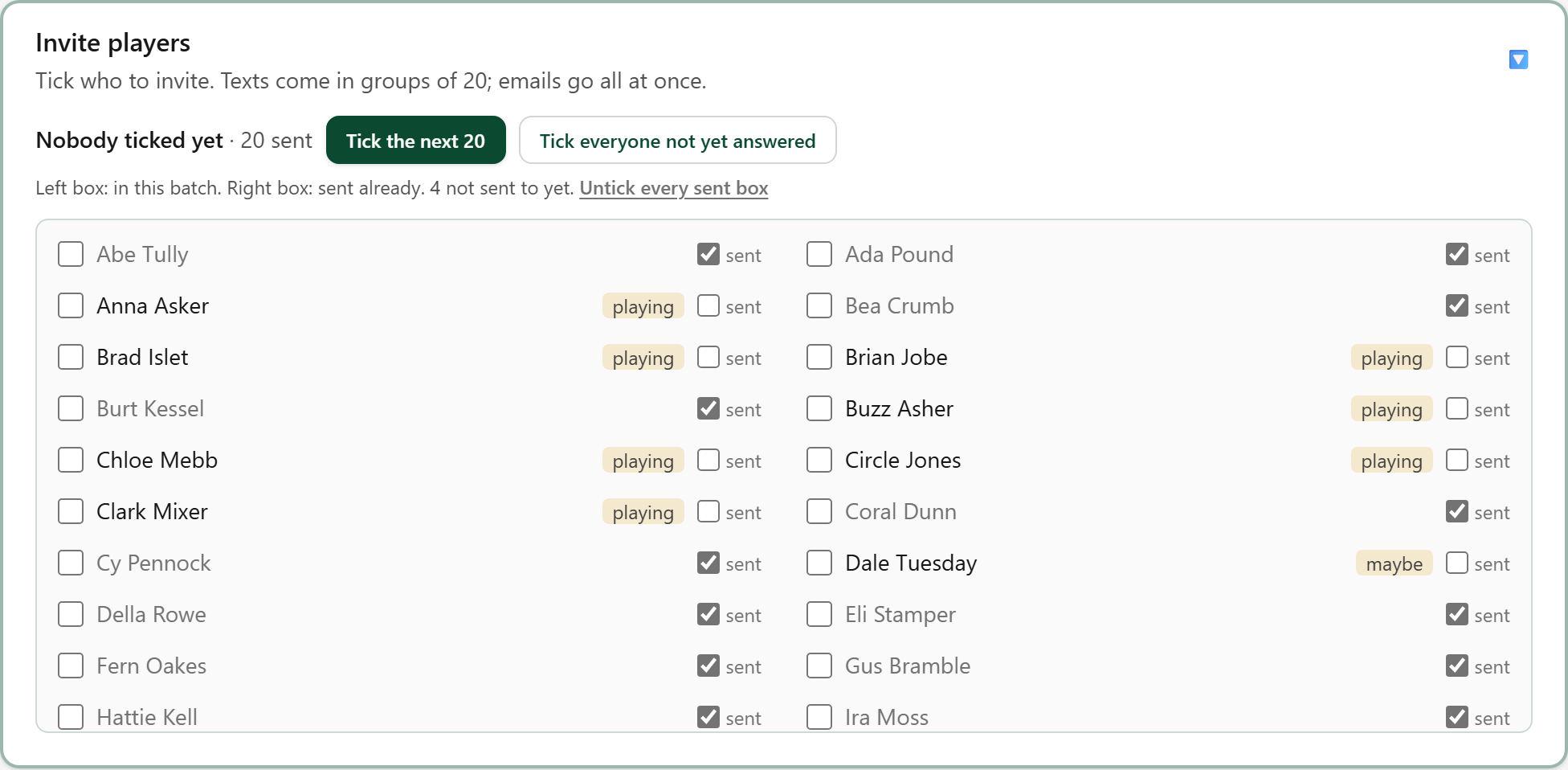
The sent boxes are shared, so another admin working the same list sees who is done.
- 7
Answer the people who ask
Replies land on the Signing up card. Accept puts a player in the tournament; No turns them down — they can ask again if a spot opens up.
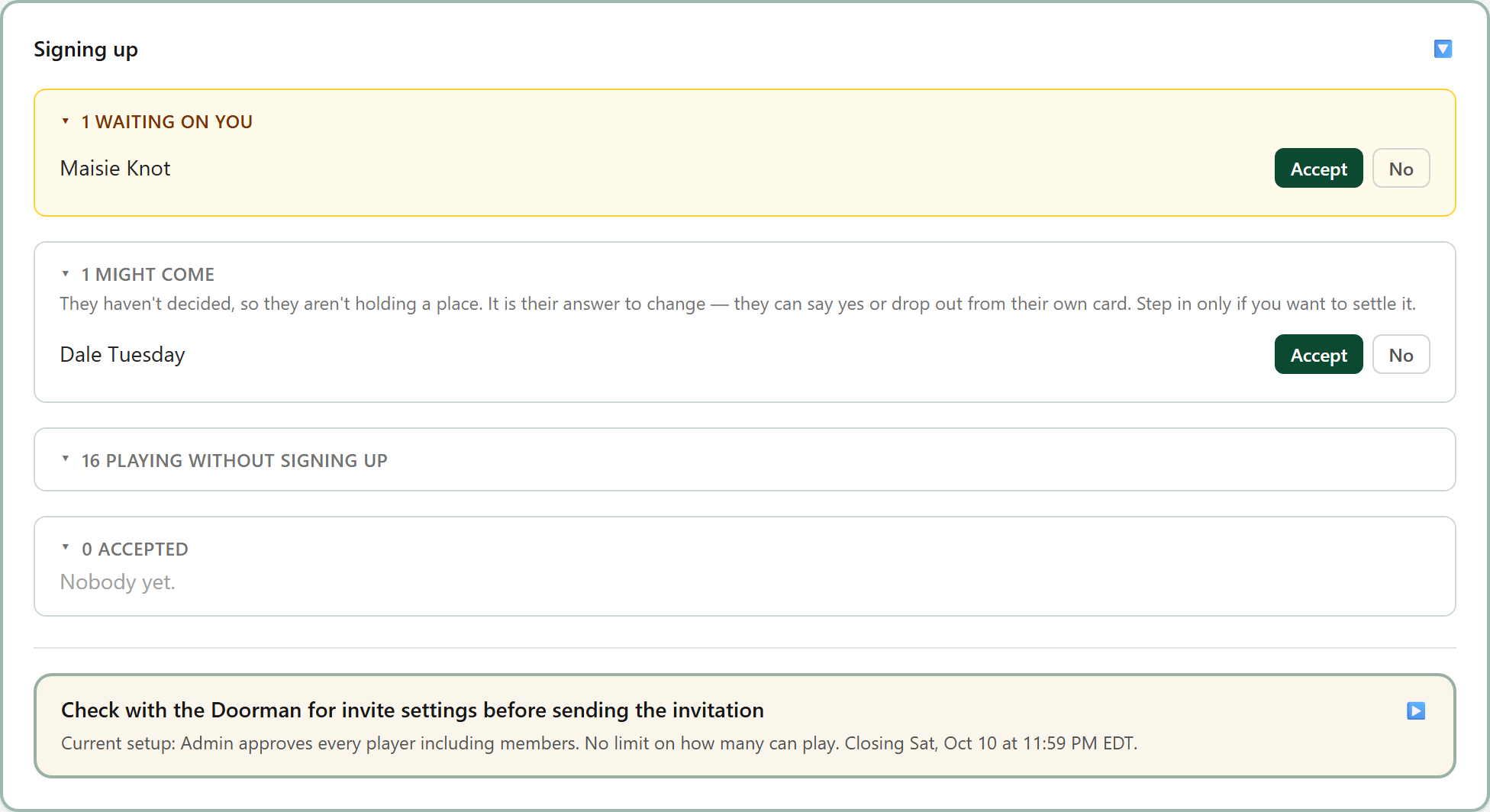
A maybe isn't holding a place. It is up to the player to change their answer.
- 8
What it will pay
What is in the pot and where the money is being allocated to.
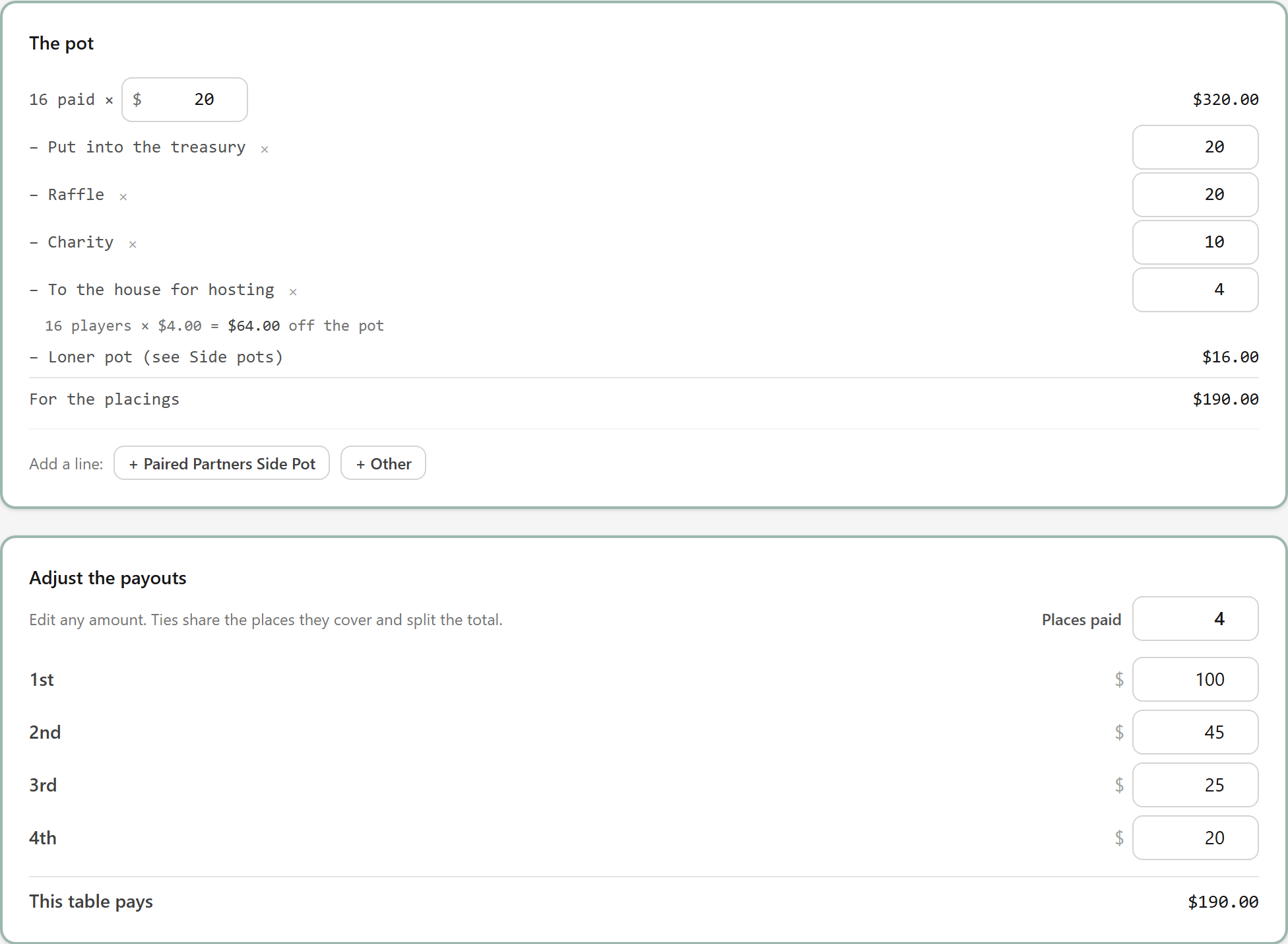
The payouts are defaulted to split evenly. You can modify the numbers at any time as needed.
- 9
Check people in
Players arrive and get checked in. This is the last point where the players can change without reshuffling the player assignments. If your club plays with player numbers, give them out once all players are present and paid.
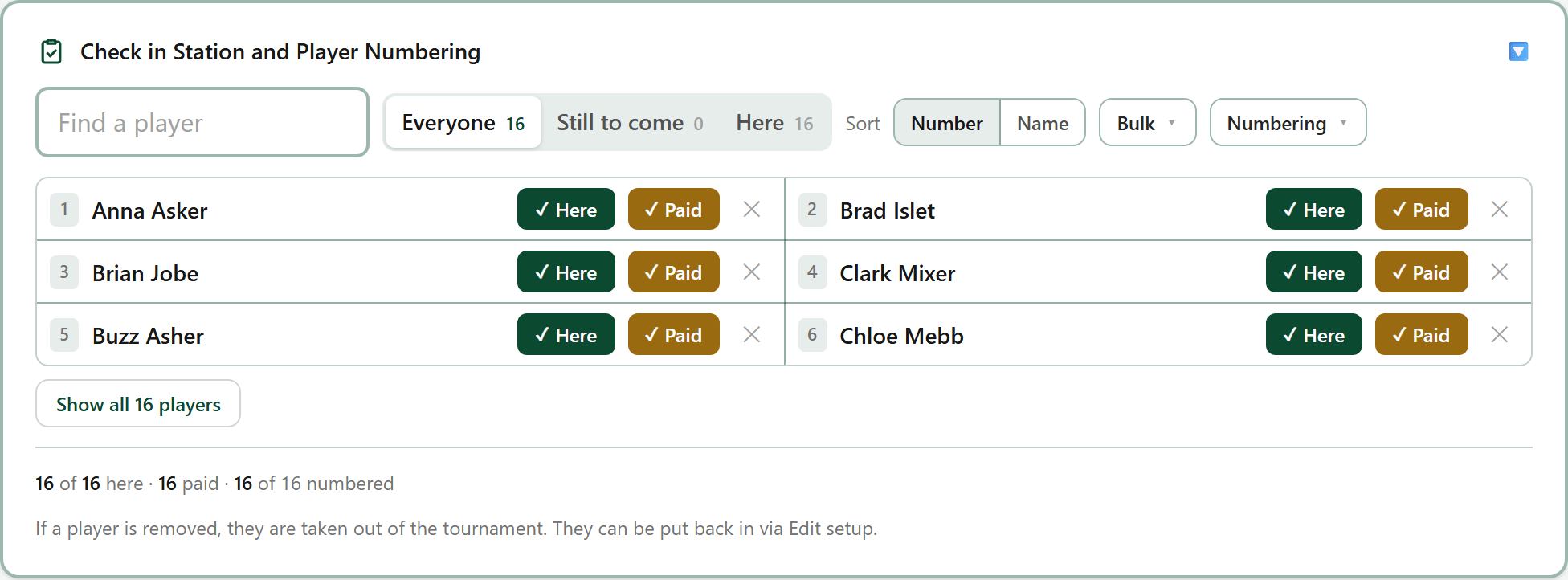
You can choose the Numbering button to redraw the numbers.
- 9A
Somebody owes their $5
A member who owes their membership has a red line under their name at the check-in station. They pay before they play: a card payment on their phone clears it at once.
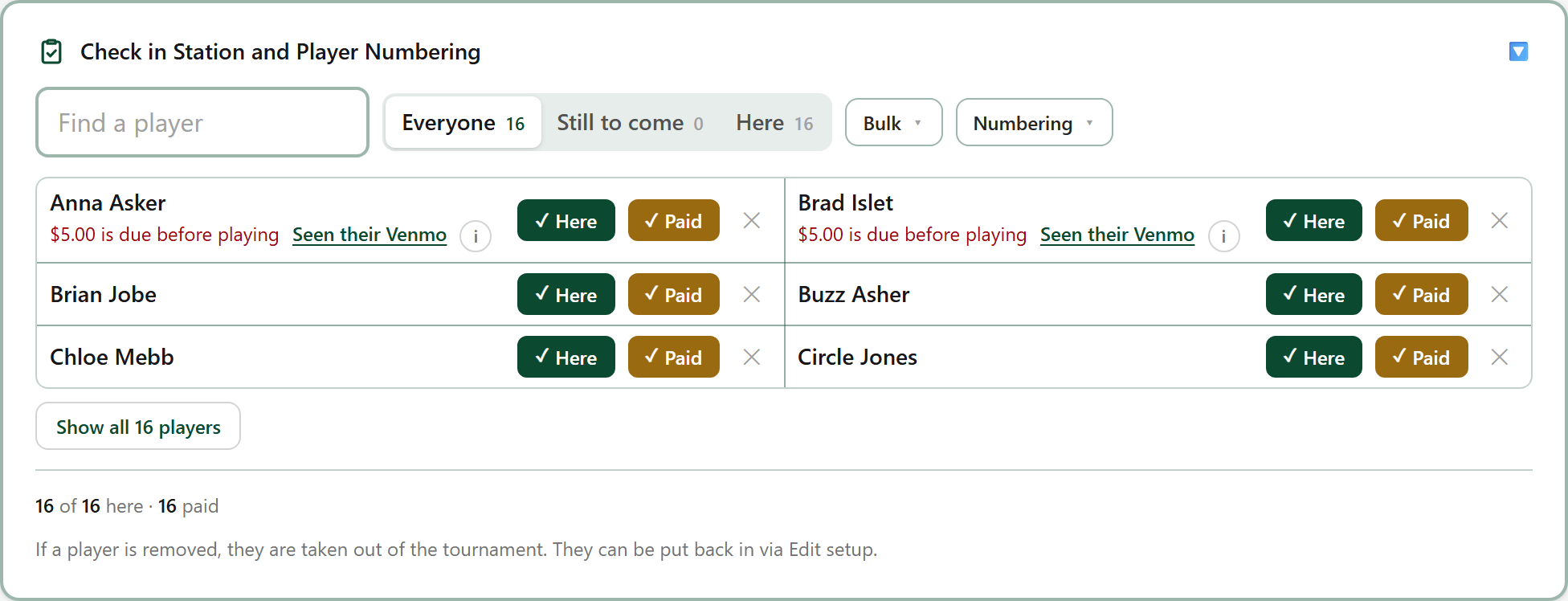
Start stays greyed out while somebody in the field owes. Take them out with the ✕ if they can't pay.
- 10
Start the tournament
When you press Start the tournament, the players get a push notification (if it is turned on for their device), or see their scorecards open for tracking when they refresh their screens.
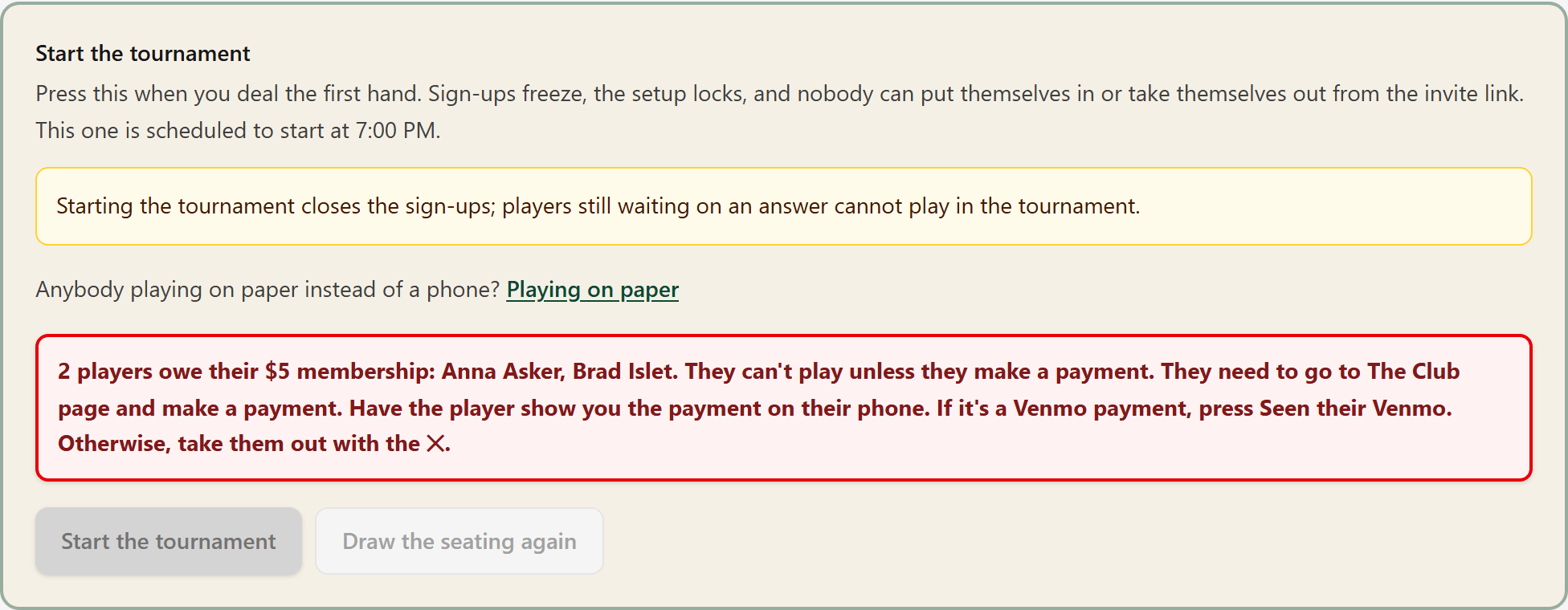
If the tournament was started in error, Undo start sits beside the button until the first score is recorded.
- 10A
Send it to the club
Syncing publishes the tournament details to the club board so members see the scoreboard, their results and the prize table on their computers, tablets or phones. It also brings in the scores members entered.

The app has an internal clock that syncs updates every 15–30 seconds to keep changes up to date. The Sync button is used to upload changes faster, when a player has dropped out, or when the signal to players' devices was slow or absent.
- 10B
Event Options
Event Options is a pick list to manage tournament data and history. Printing the sheets for the room offers a wide variety of stats and score sheets.
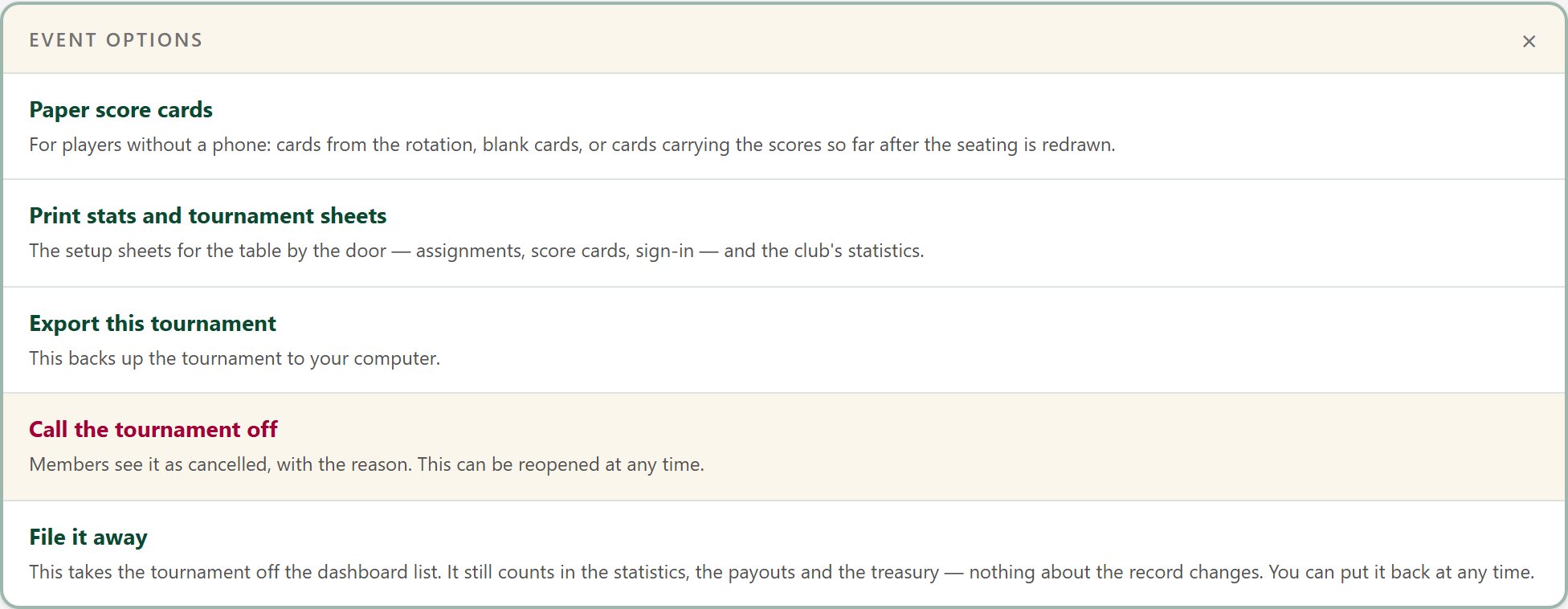
The Printing sheets and statistics picture guide shows every sheet. See the full layout in the Help guide →
- 11
Save the finish for the end
Hold the last round's scores back, so nobody knows who won until you say.

- 12
Enter the scores as rounds finish
The scores entered by the players.
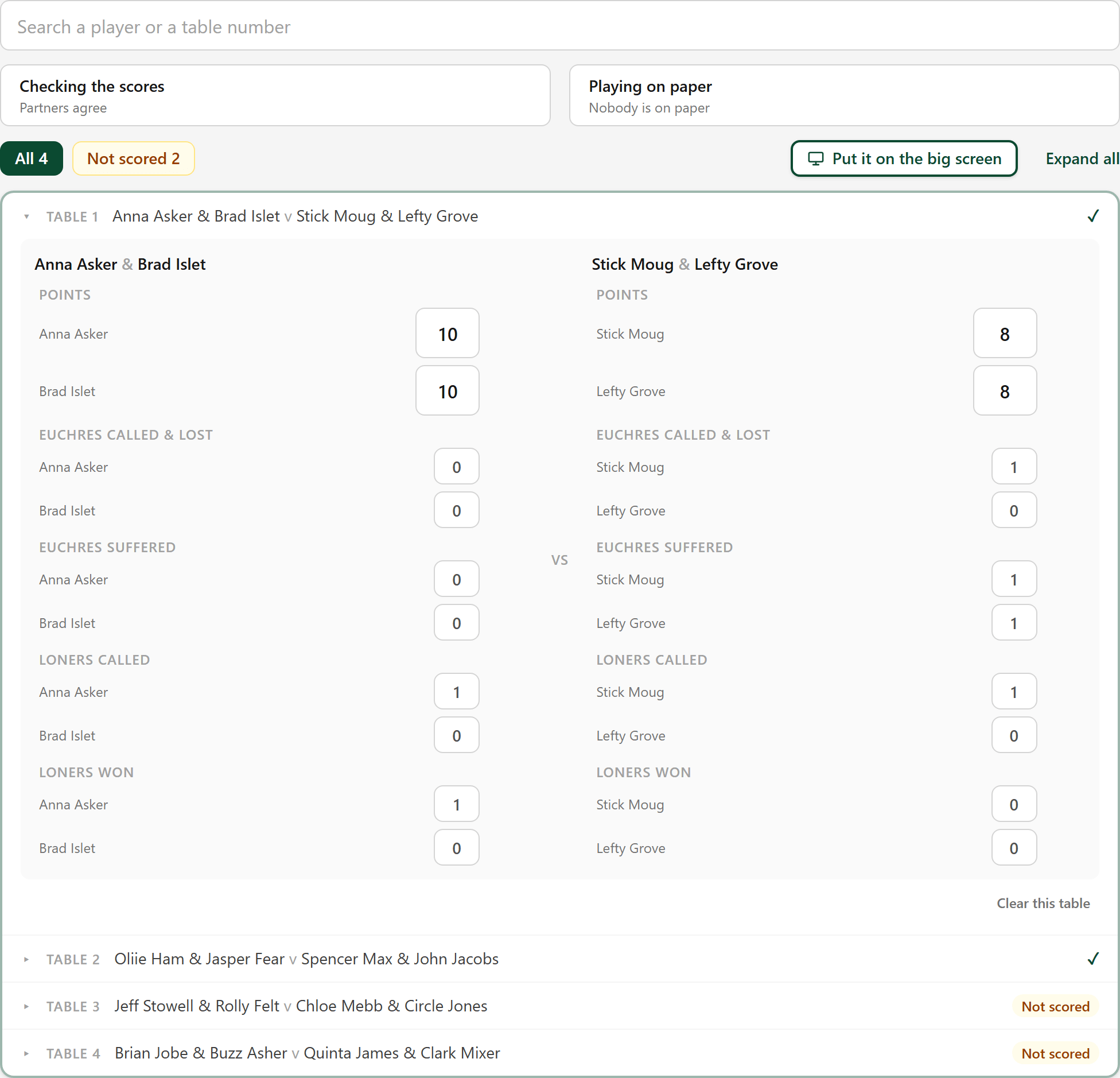
The admin can overwrite the scores. This is common when a player's phone isn't working or for players that are not adept with using a phone or a tablet.
- 12A
A round that won't open yet
Nobody can score round 2 until every table in round 1 is in. Players see the same refusal on their computers, tablets or phones.
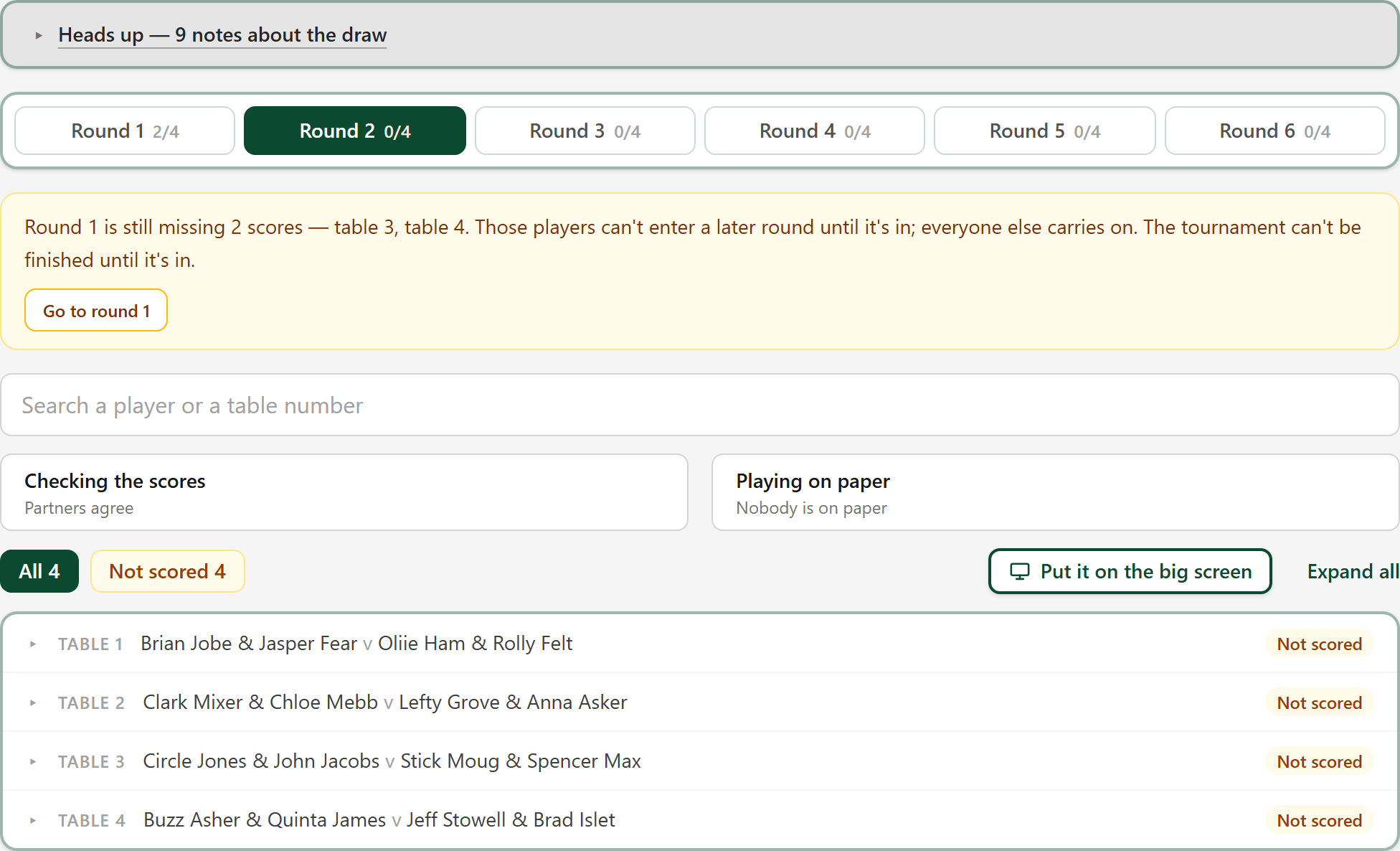
The message names the tables still missing. Get their scores in and the next round opens by itself. If they have gone home, press Carry on without them on the amber warning at the top of the Rounds tab.
- 13
Finalize when the last table is in
Open Live Tournament Management, under the tabs. Finalize tournament locks in the standings and names the winner.
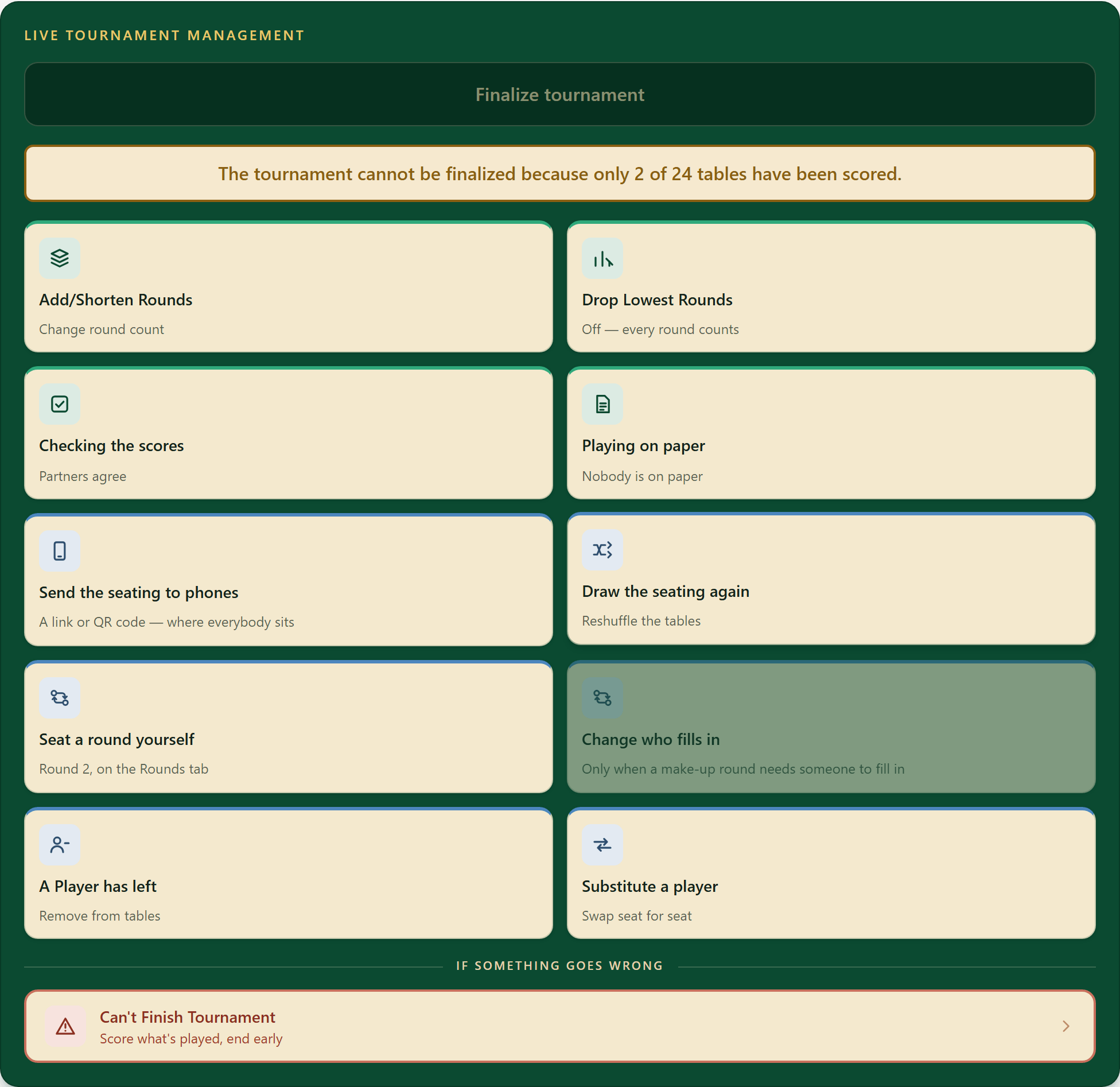
Finalize tournament stays grey until every table is scored, and it tells you how many remain. The buttons under it are for making unplanned changes during the tournament. The Live Tournament Management picture guide provides a detailed walkthrough.
- 14
Break a tie
This is optional. Players with the same points share a place until you break the tie. On the Leaderboard, open Tie breakers: it lists every tie, with Break the tie beside each one.
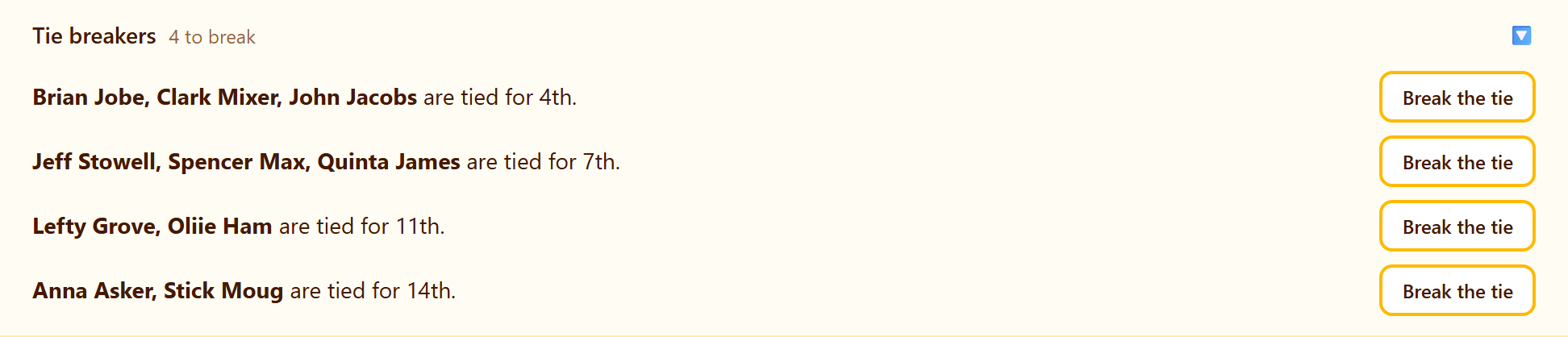
Break the ties before you settle the money. Undo the tiebreak puts them back to tied.
- 14A
Pick who won the tiebreak
Press the names in the order they finished the tiebreak, best first, then press the button naming the winner. Anybody you leave out stays tied behind them.
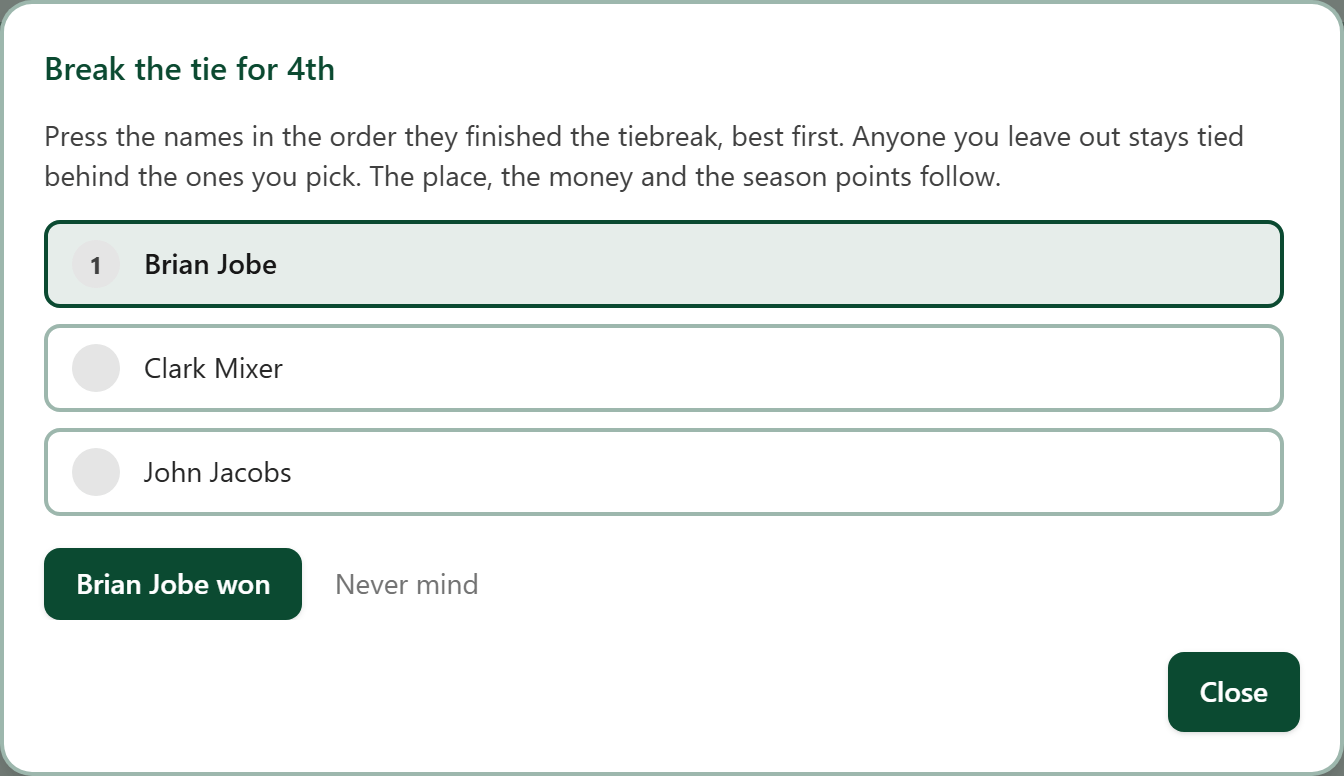
The place, the money and the season points follow the order you choose.
- 14B
After the tiebreak
The places now follow the order you pressed, and each player carries a tag saying whether they won or lost the tiebreak.
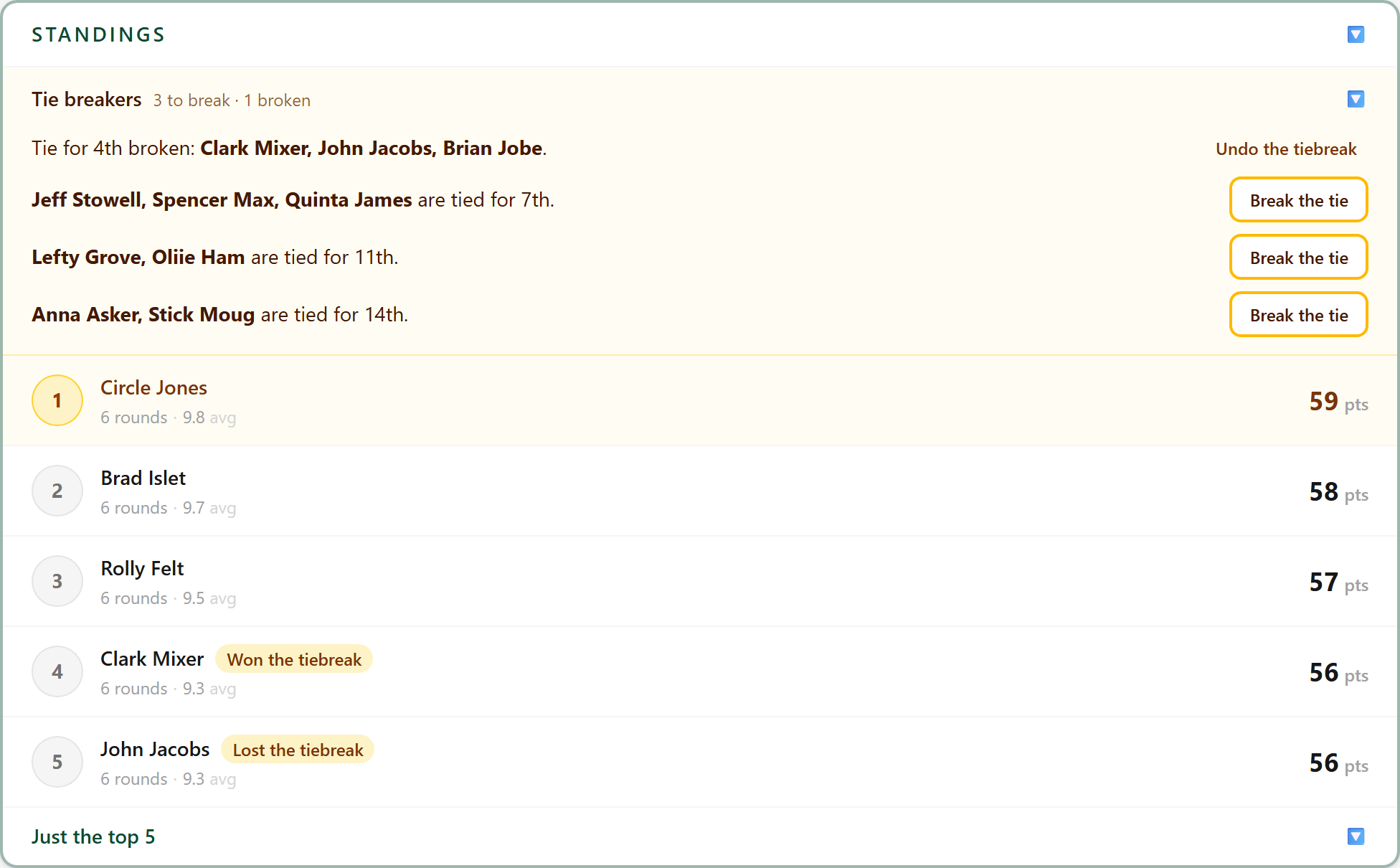
Undo the tiebreak, on the Tie breakers row, puts them back in their previous positions.
- 15
Settle the money
What came in, what the euchre jar took, and who gets paid.
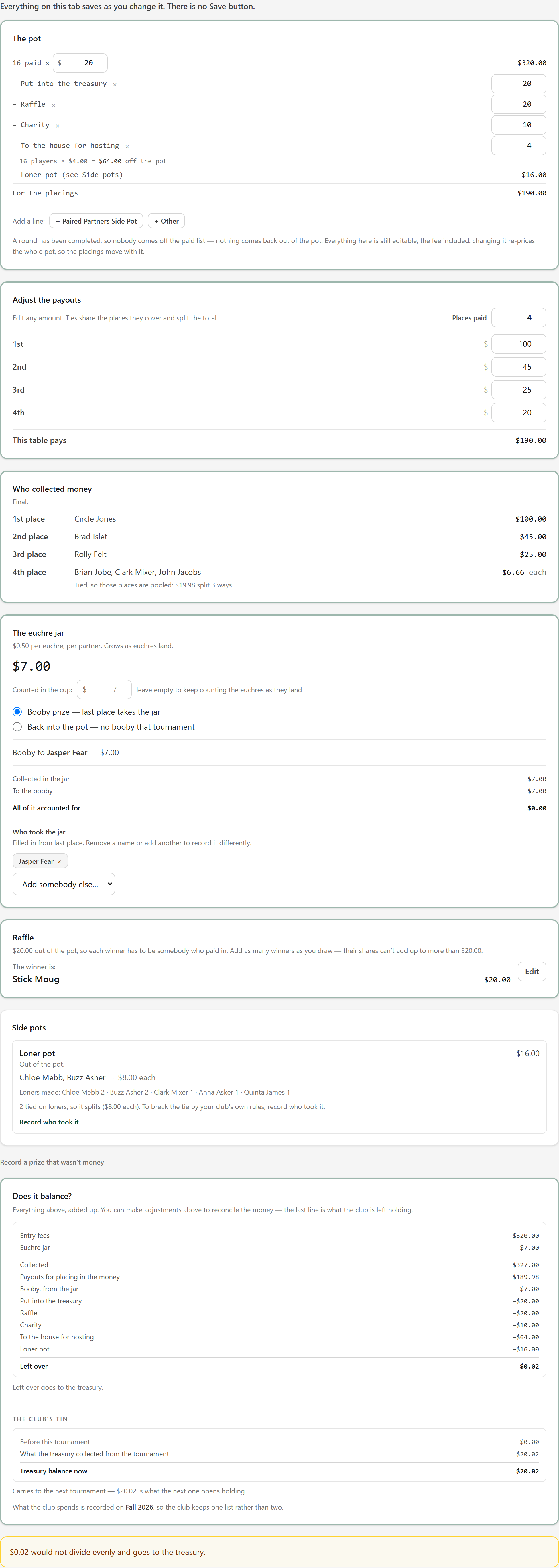
Money that will not divide evenly, like the $0.02 here, goes to the treasury. You can adjust the payouts or reallocate it in The pot section.
- 15A
Record a prize that wasn't money
Many tournaments are for charity, and the prizes are donated rather than paid. Under the Money section, press Record a prize that wasn't money: choose who won it, say what it was and what it was for, and who donated it. You can also have a combination of cash prizes and donations from sponsors in the same tournament.
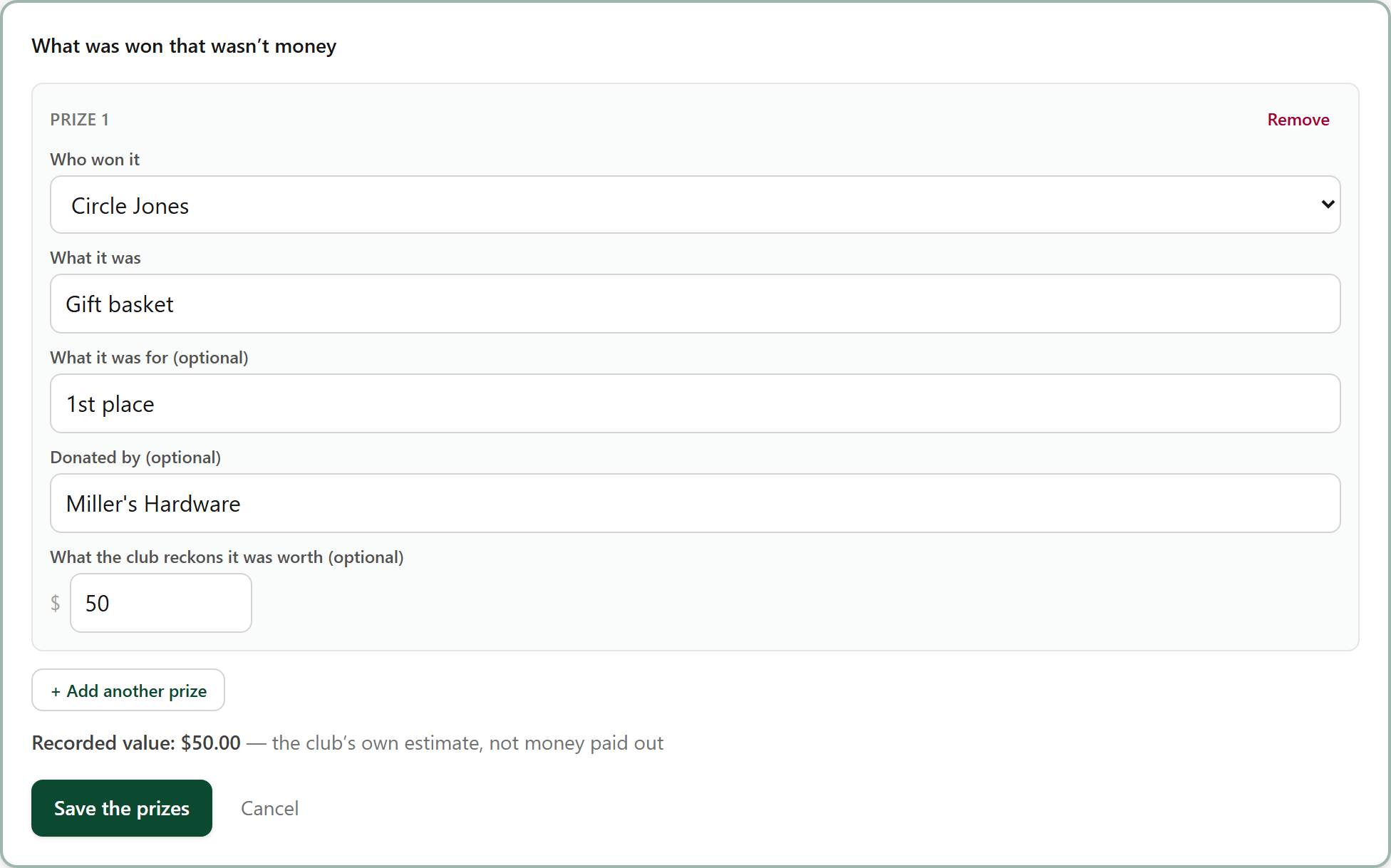
What it was worth is optional. Saved prizes are listed on the tournament's prize table with who won them. Press + Add another prize to record additional prizes or donations.
- 16
The results on the club page
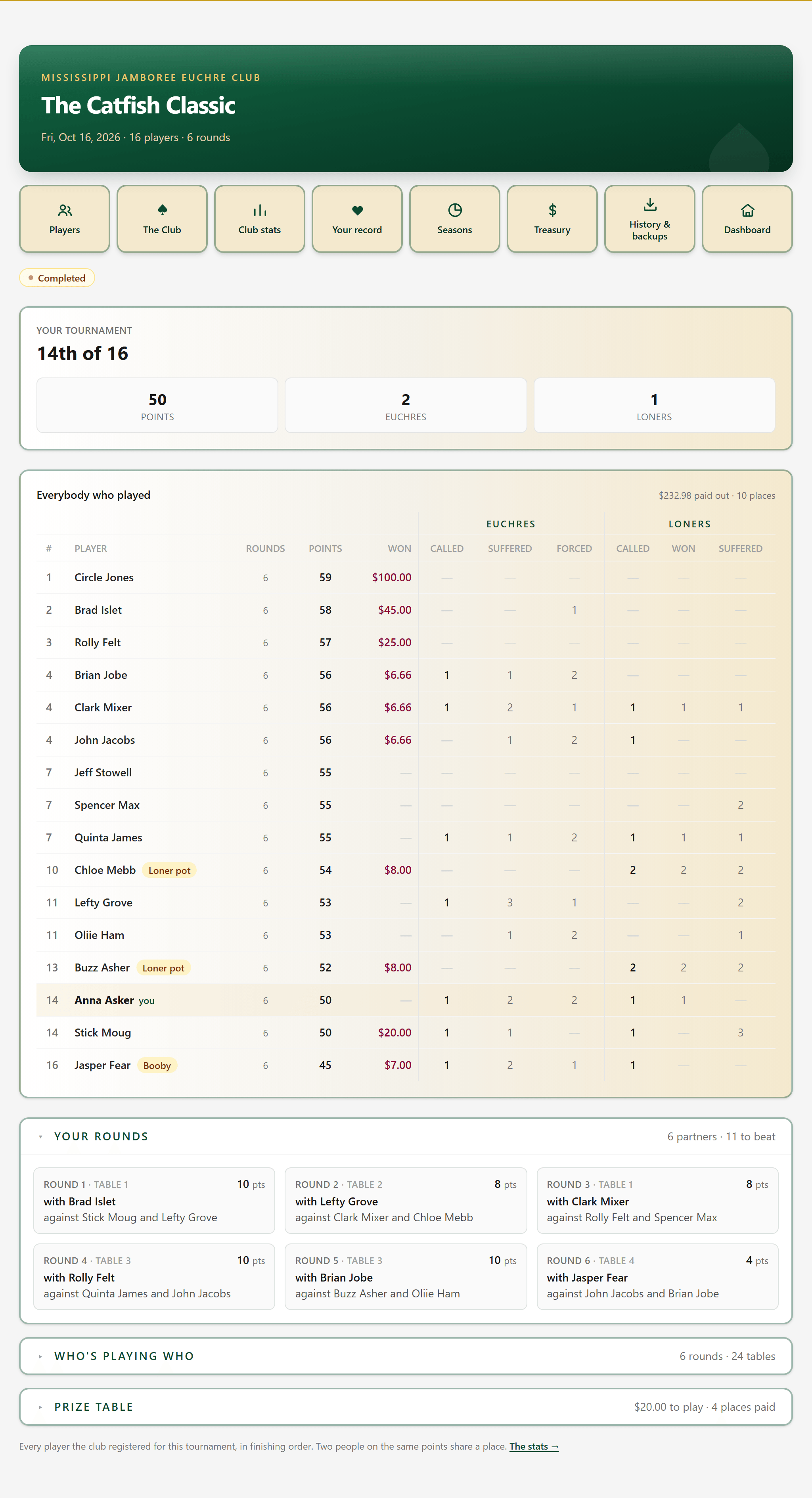
After the tournament is complete, every member can open the finished tournament from the club page and the Treasury: the finishing order, who won what, and the euchres and loners.
- 16A
Open the prize table
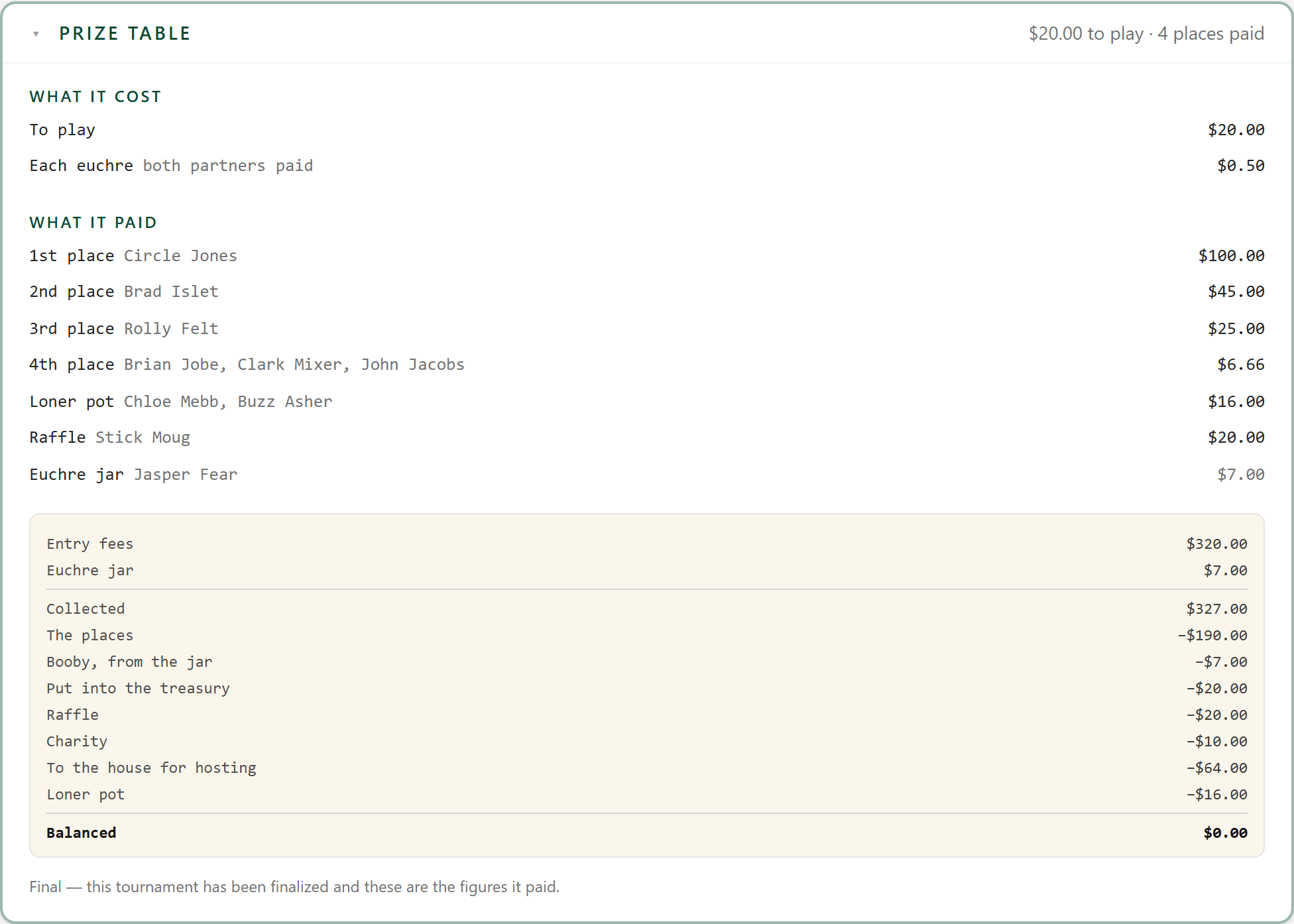
The rows at the foot of the page open. Prize table is what the tournament paid out: the places, the euchre jar and any side pot, with the names beside them. In the event of a recording error, an admin can edit these numbers on the tournament's Money tab after the tournament is complete.
Who's playing who opens the same way, with every round's tables and who sat at them.